---
title: Accessing the web ADE
subtitle: Connect to both self-hosted and cloud agents from the web ADE
slug: guides/ade/browser
---
The web ADE is available at [https://app.letta.com](https://app.letta.com). You can use the browser-based ADE to connect to both Letta Cloud, and agents running on your own Letta deployments.
## Understanding Connection Types
The ADE can connect to different types of Letta servers:
1. **Local Server**: A Letta server running on your local machine (`localhost`)
2. **Remote Server**: A self-hosted Letta server running on a remote address
3. **Letta Cloud**: Letta's managed cloud service for hosting agents
All connections use the Letta REST API to communicate between the ADE and the server. For remote servers (non-`localhost`), HTTPS is required.
## Connecting to a Local Server
Connecting to a local Letta server is the simplest setup and ideal for development:
1. **Start your Letta server** using [Docker](/guides/selfhosting)
2. **Access the ADE** by visiting [https://app.letta.com](https://app.letta.com)
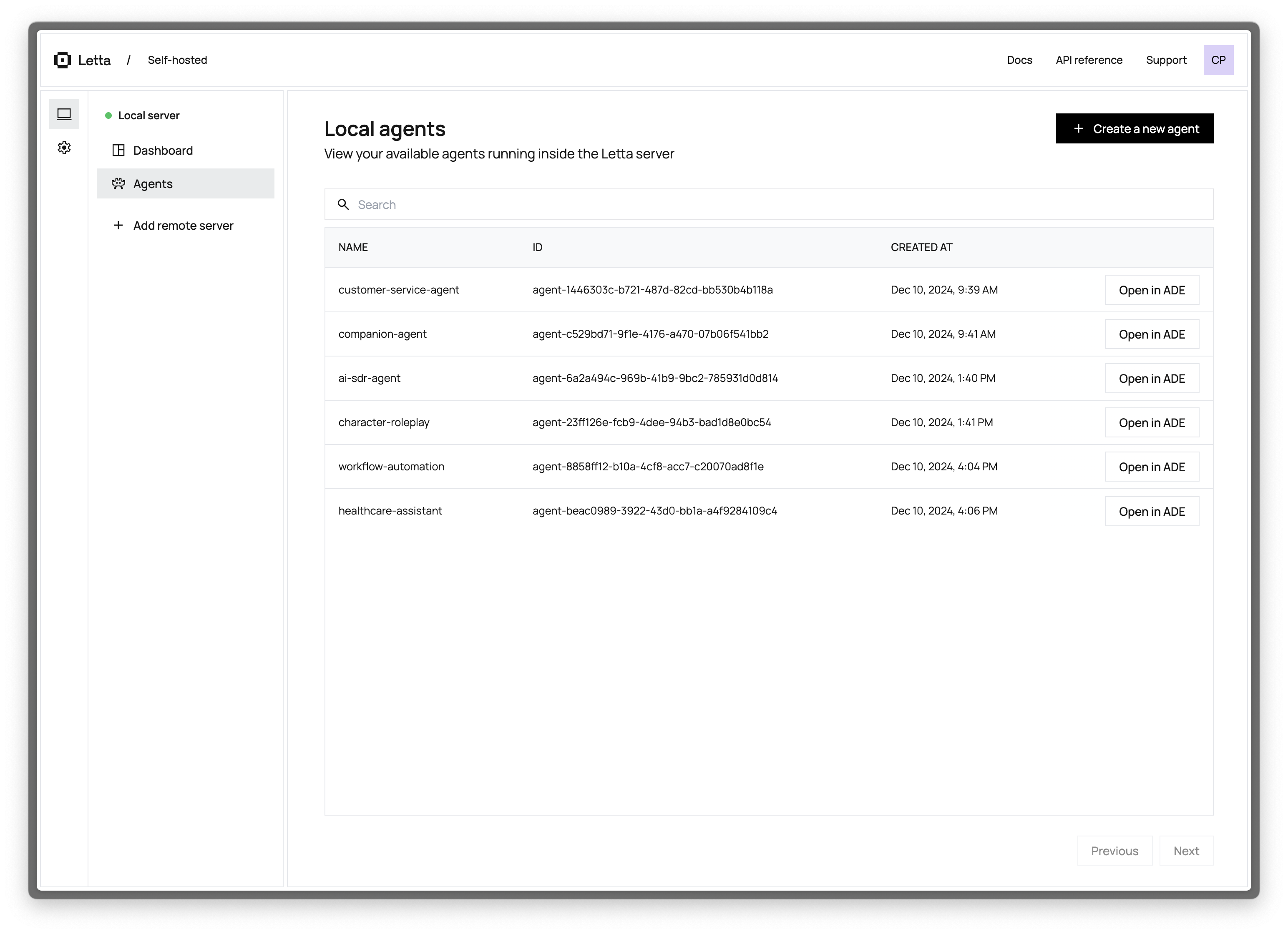
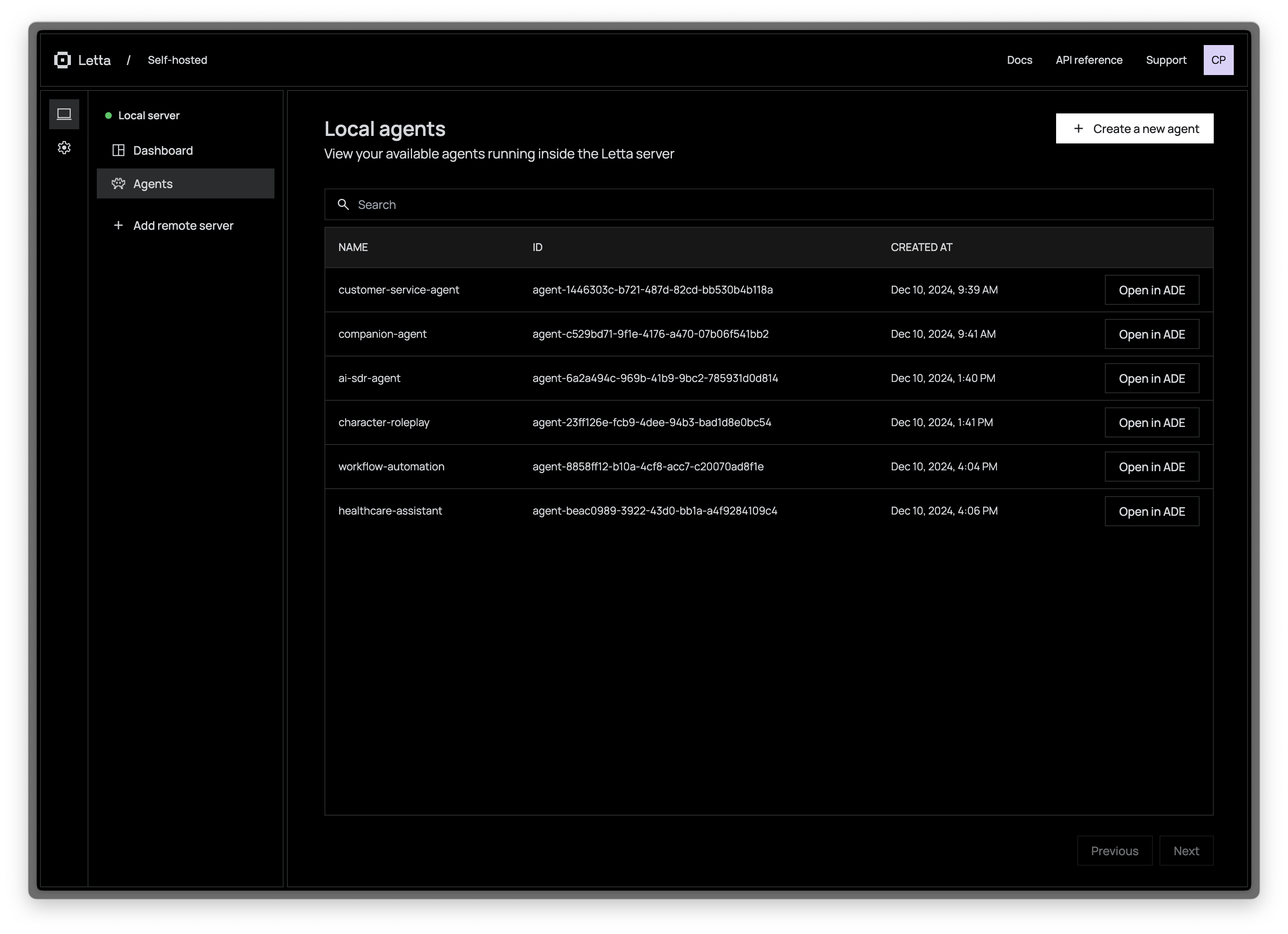
3. **Select "Local server"** from the server list in the left panel
The ADE will automatically detect your local Letta server running on `localhost:8283` and establish a connection.
 ## Connecting to a Remote Server
For production environments or team collaboration, you may want to connect to a Letta server running on a remote machine:
The cloud/web ADE does **not support** connecting to `http` (non-`https`) IP addresses, *except* for `localhost`.
For example, if your server is running on a home address like `http://192.168.1.10:8283`, the ADE (when running on a browser on another device on the network) will not be able to connect to your server because it is not using `https`.
For more information on setting up `https` proxies, see the [remote deployment guide](/guides/server/remote).
To connect to a remote Letta server:
1. **Deploy your Letta server** on your preferred hosting service (EC2, Railway, etc.)
2. **Ensure HTTPS access** is configured for your server
3. **In the ADE, click "Add remote server"**
4. **Enter the connection details**:
- Server name: A friendly name to identify this server
- Server URL: The full URL including `https://` and port if needed
- Server password: If you've configured API authentication, enter the password
## Connecting to a Remote Server
For production environments or team collaboration, you may want to connect to a Letta server running on a remote machine:
The cloud/web ADE does **not support** connecting to `http` (non-`https`) IP addresses, *except* for `localhost`.
For example, if your server is running on a home address like `http://192.168.1.10:8283`, the ADE (when running on a browser on another device on the network) will not be able to connect to your server because it is not using `https`.
For more information on setting up `https` proxies, see the [remote deployment guide](/guides/server/remote).
To connect to a remote Letta server:
1. **Deploy your Letta server** on your preferred hosting service (EC2, Railway, etc.)
2. **Ensure HTTPS access** is configured for your server
3. **In the ADE, click "Add remote server"**
4. **Enter the connection details**:
- Server name: A friendly name to identify this server
- Server URL: The full URL including `https://` and port if needed
- Server password: If you've configured API authentication, enter the password

 ## Managing Server Connections
The ADE allows you to manage multiple server connections:
### Saving Server Connections
Once you add a remote server, it will be saved in your browser's local storage for easy access in future sessions. To manage saved connections:
1. Click on the server dropdown in the left panel
2. Select "Manage servers" to view all saved connections
3. Use the options to edit or remove servers from your list
### Switching Between Servers
You can easily switch between different Letta servers:
1. Click on the current server name in the left panel
2. Select a different server from the dropdown list
3. The ADE will connect to the selected server and display its agents
This flexibility allows you to work with development, staging, and production environments from a single ADE interface.
## Managing Server Connections
The ADE allows you to manage multiple server connections:
### Saving Server Connections
Once you add a remote server, it will be saved in your browser's local storage for easy access in future sessions. To manage saved connections:
1. Click on the server dropdown in the left panel
2. Select "Manage servers" to view all saved connections
3. Use the options to edit or remove servers from your list
### Switching Between Servers
You can easily switch between different Letta servers:
1. Click on the current server name in the left panel
2. Select a different server from the dropdown list
3. The ADE will connect to the selected server and display its agents
This flexibility allows you to work with development, staging, and production environments from a single ADE interface.