 a68e2c838d
* updated local APIs to return usage info (#585)

* updated APIs to return usage info

* tested all endpoints

* added autogen as an extra (#616)

* added autogen as an extra

* updated docs

Co-authored-by: hemanthsavasere <hemanth.savasere@gmail.com>

* Update LICENSE

* Add safeguard on tokens returned by functions (#576)

* swapping out hardcoded str for prefix (forgot to include in #569)

* add extra failout when the summarizer tries to run on a single message

* added function response validation code, currently will truncate responses based on character count

* added return type hints (functions/tools should either return strings or None)

* discuss function output length in custom function section

* made the truncation more informative

* patch bug where None.copy() throws runtime error (#617)

* allow passing custom host to uvicorn (#618)

* feat: initial poc for socket server

* feat: initial poc for frontend based on react

Set up an nx workspace which maks it easy to manage dependencies and added shadcn components
that allow us to build good-looking ui in a fairly simple way.
UI is a very simple and basic chat that starts with a message of the user and then simply displays the
answer string that is sent back from the fastapi ws endpoint

* feat: mapp arguments to json and return new messages

Except for the previous user message we return all newly generated messages and let the frontend figure out how to display them.

* feat: display messages based on role and show inner thoughts and connection status

* chore: build newest frontend

* feat(frontend): show loader while waiting for first message and disable send button until connection is open

* feat: make agent send the first message and loop similar to CLI

currently the CLI loops until the correct function call sends a message to the user. this is an initial try to achieve a similar behavior in the socket server

* chore: build new version of frontend

* fix: rename lib directory so it is not excluded as part of python gitignore

* chore: rebuild frontend app

* fix: save agent at end of each response to allow the conversation to carry on over multiple sessions

* feat: restructure server to support multiple endpoints and add agents and sources endpoint

* feat: setup frontend routing and settings page

* chore: build frontend

* feat: another iteration of web interface

changes include: websocket for chat. switching between different agents. introduction of zustand state management

* feat: adjust frontend to work with memgpt rest-api

* feat: adjust existing rest_api to serve and interact with frontend

* feat: build latest frontend

* chore: build latest frontend

* fix: cleanup workspace

---------

Co-authored-by: Charles Packer <packercharles@gmail.com>
Co-authored-by: hemanthsavasere <hemanth.savasere@gmail.com>

MemGPT
Try out our MemGPT chatbot on Discord!
⭐ NEW: You can now run MemGPT with open/local LLMs and AutoGen! ⭐



🤖 Create perpetual chatbots with self-editing memory!

🗃️ Chat with your data - talk to your local files or SQL database!

Quick setup
Join Discord and message the MemGPT bot (in the #memgpt channel). Then run the following commands (messaged to "MemGPT Bot"):
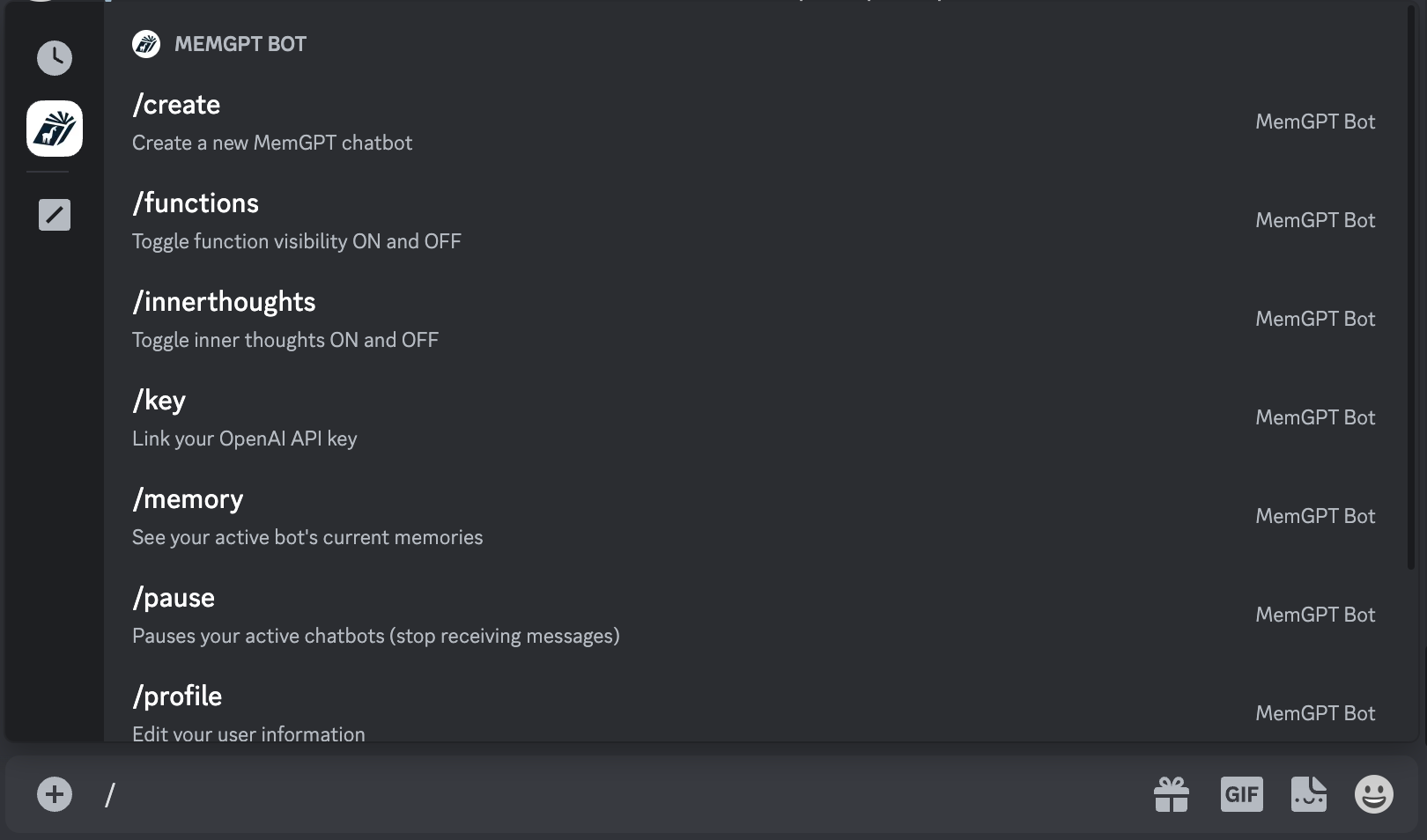
/profile(to create your profile)/key(to enter your OpenAI key)/create(to create a MemGPT chatbot)
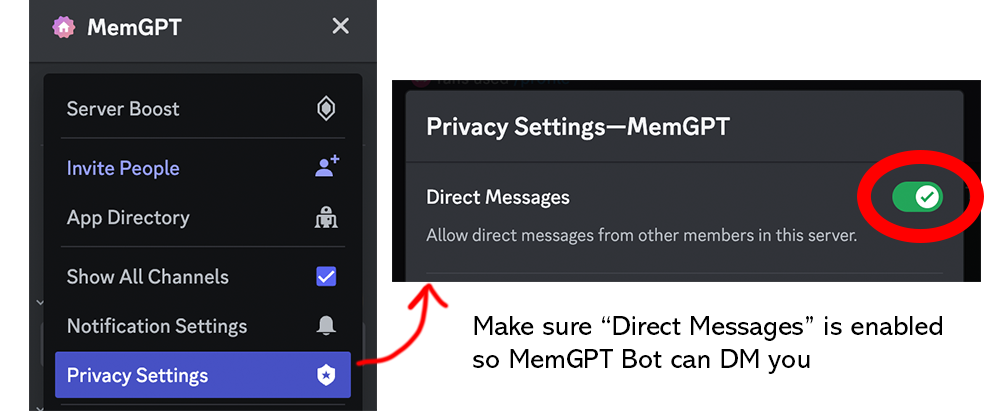
Make sure your privacy settings on this server are open so that MemGPT Bot can DM you:
MemGPT → Privacy Settings → Direct Messages set to ON
You can see the full list of available commands when you enter / into the message box.
What is MemGPT?
Memory-GPT (or MemGPT in short) is a system that intelligently manages different memory tiers in LLMs in order to effectively provide extended context within the LLM's limited context window. For example, MemGPT knows when to push critical information to a vector database and when to retrieve it later in the chat, enabling perpetual conversations. Learn more about MemGPT in our paper.
Running MemGPT locally
Install MemGPT:
pip install -U pymemgpt
Now, you can run MemGPT and start chatting with a MemGPT agent with:
memgpt run
If you're running MemGPT for the first time, you'll see two quickstart options:
- OpenAI: select this if you'd like to run MemGPT with OpenAI models like GPT-4 (requires an OpenAI API key)
- MemGPT Free Endpoint: select this if you'd like to try MemGPT on a top open LLM for free (currently variants of Mixtral 8x7b!)
Neither of these options require you to have an LLM running on your own machine. If you'd like to run MemGPT with your custom LLM setup (or on OpenAI Azure), select Other to proceed to the advanced setup.
Advanced setup
You can reconfigure MemGPT's default settings by running:
memgpt configure
In-chat commands
You can run the following commands in the MemGPT CLI prompt while chatting with an agent:
/exit: Exit the CLI/attach: Attach a loaded data source to the agent/save: Save a checkpoint of the current agent/conversation state/dump: View the current message log (see the contents of main context)/dump <count>: View the last messages (all if is omitted)/memory: Print the current contents of agent memory/pop: Undo the last message in the conversation/pop <count>: Undo the last messages in the conversation. It defaults to 3, which usually is one turn around in the conversation/retry: Pops the last answer and tries to get another one/rethink <text>: Will replace the inner dialog of the last assistant message with the to help shaping the conversation/rewrite: Will replace the last assistant answer with the given text to correct or force the answer/heartbeat: Send a heartbeat system message to the agent/memorywarning: Send a memory warning system message to the agent
Once you exit the CLI with /exit, you can resume chatting with the same agent by specifying the agent name in memgpt run --agent <NAME>.
Documentation
See full documentation at: https://memgpt.readme.io
Installing from source
To install MemGPT from source, start by cloning the repo:
git clone git@github.com:cpacker/MemGPT.git
Then navigate to the main MemGPT directory, and do:
pip install -e .
Now, you should be able to run memgpt from the command-line using the downloaded source code.
If you are having dependency issues using pip install -e ., we recommend you install the package using Poetry (see below). Installing MemGPT from source using Poetry will ensure that you are using exact package versions that have been tested for the production build.
Installing from source (using Poetry)
First, install Poetry using the official instructions here.
Then, you can install MemGPT from source with:
git clone git@github.com:cpacker/MemGPT.git
poetry shell
poetry install
Python integration (for developers)
The fastest way to integrate MemGPT with your own Python projects is through the MemGPT client class:
from memgpt import MemGPT

# Create a MemGPT client object (sets up the persistent state)
client = MemGPT(
  quickstart="openai",
  config={
    "openai_api_key": "YOUR_API_KEY"
  }
)

# You can set many more parameters, this is just a basic example
agent_id = client.create_agent(
  agent_config={
    "persona": "sam_pov",
    "human": "cs_phd",
  }
)

# Now that we have an agent_name identifier, we can send it a message!
# The response will have data from the MemGPT agent
my_message = "Hi MemGPT! How's it going?"
response = client.user_message(agent_id=agent_id, message=my_message)
More in-depth example of using MemGPT Client
from memgpt.config import AgentConfig
from memgpt import MemGPT
from memgpt.cli.cli import QuickstartChoice


client = MemGPT(
    # When auto_save is 'True' then the agent(s) will be saved after every
    # user message.  This may have performance implications, so you
    # can otherwise choose when to save explicitly using client.save().
    auto_save=True,

    # Quickstart will automatically configure MemGPT (without having to run `memgpt configure`
    # If you choose 'openai' then you must set the api key (env or in config)
    quickstart=QuickstartChoice.memgpt_hosted,

    # Allows you to override default config generated by quickstart or `memgpt configure`
    config={}
)

# Create an AgentConfig with default persona and human txt
# In this case, assume we wrote a custom persona file "my_persona.txt", located at ~/.memgpt/personas/my_persona.txt
# Same for a custom user file "my_user.txt", located at ~/.memgpt/humans/my_user.txt
agent_config = AgentConfig(
    name="CustomAgent",
    persona="my_persona",
    human="my_user",
)

# Create the agent according to AgentConfig we set up. If an agent with
# the same name already exists it will simply return, unless you set
# throw_if_exists to 'True'
agent_id = client.create_agent(agent_config=agent_config)

# Create a helper that sends a message and prints the assistant response only
def send_message(message: str):
    """
    sends a message and prints the assistant output only.
    :param message: the message to send
    """
    response = client.user_message(agent_id=agent_id, message=message)
    for r in response:
        # Can also handle other types "function_call", "function_return", "function_message"
        if "assistant_message" in r:
            print("ASSISTANT:", r["assistant_message"])
        elif "thoughts" in r:
            print("THOUGHTS:", r["internal_monologue"])

# Send a message and see the response
send_message("Please introduce yourself and tell me about your abilities!")
Support
For issues and feature requests, please open a GitHub issue or message us on our #support channel on Discord.
Datasets
Datasets used in our paper can be downloaded at Hugging Face.
🚀 Project Roadmap
- Release MemGPT Discord bot demo (perpetual chatbot)
- Add additional workflows (load SQL/text into MemGPT external context)
- Integration tests
- Integrate with AutoGen (discussion)
- Add official gpt-3.5-turbo support (discussion)
- CLI UI improvements (issue)
- Add support for other LLM backends (issue, discussion)
- Release MemGPT family of open models (eg finetuned Mistral) (discussion)